
How to Make a Quran Verse Poster on Mobile — With Translation and Reference
Create a Quran verse poster on your phone with Arabic text, an English translation, and a visible Quran reference—free in Akhirah Designer and without creating an account.
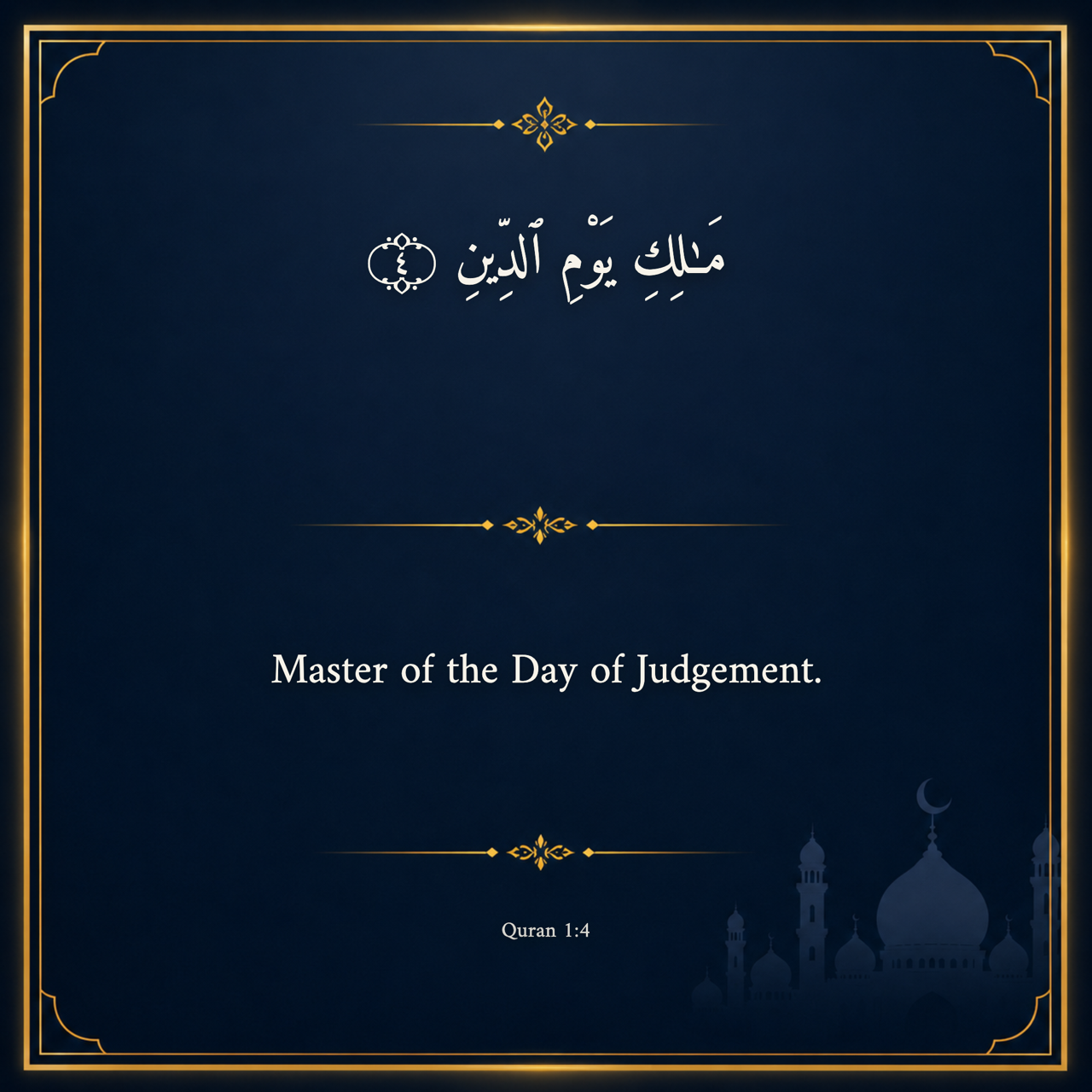
Create a Quran verse poster directly on your phone with Akhirah Designer. Choose a surah and ayah, select an available translation and export the finished design as PNG or JPG. No account is required. All for FREE.
What you will create
This guide creates a square poster using Surah Al-Fatiha, Ayah #4 , the selected M.A.S. Abdel Haleem English translation, and a visible Quran 1:4 reference of this Ayah.
The same process works for other available ayat and translations.
Before you begin
- Open Akhirah Designer on your phone.
- Decide which surah, ayah, language, and translation you need.
- Keep the Quran reference readable in the finished design.
Your projects can be saved locally in the current browser without creating an account.
Step 1: Start a square design
Open Akhirah Designer and leave Square — 1080 × 1080. Which is default so you would not need to set it up.
The mobile Add includes Custom text, Quran, Hadith, background controls, and Photo text (which converts your scanned photo or screenshots into text using OCR).
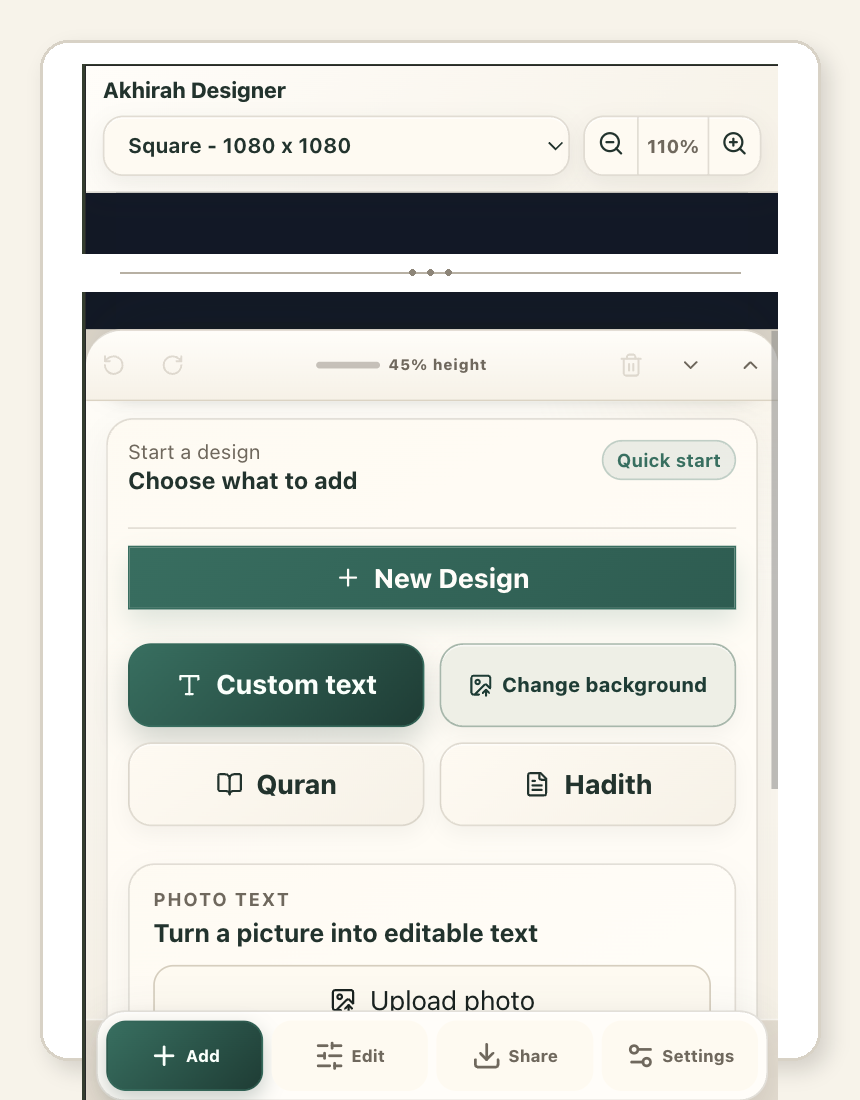
Leave Quran and Hadith unselected until you are ready to begin the source workflow.
Step 2: Select Quran
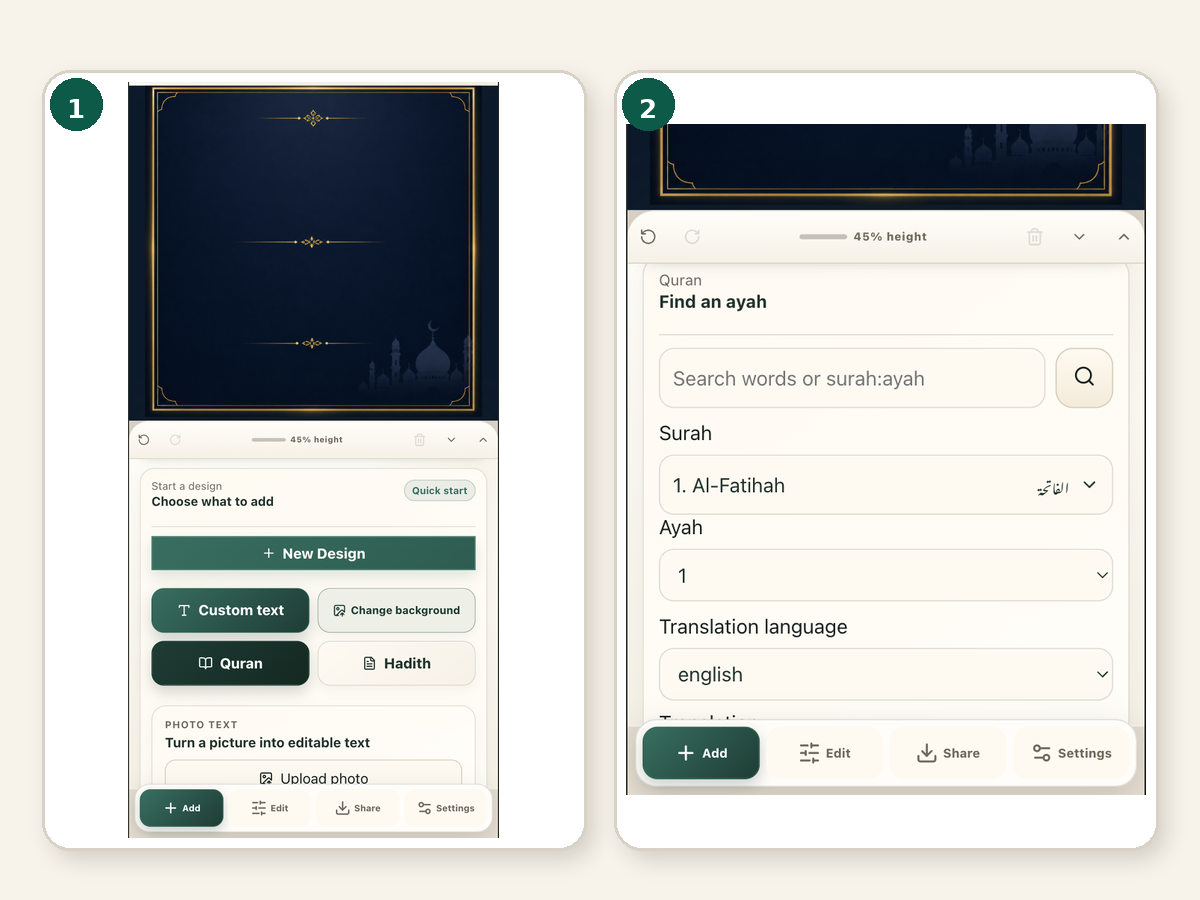
Tap Quran in the Add sheet.
Akhirah Designer activates the Quran workflow and may apply its Quran-specific visual system before an ayah is inserted. The background changing at this point is expected when automatic Quran backgrounds are enabled.
Scroll within the lower sheet until Find an ayah and its controls are visible.
Step 3: Choose and review the ayah
Choose:
- Surah
- Ayah
- Translation language
- Translation
The example in this guide uses:
- Surah: 1. Al-Fatihah — الفاتحة
- Ayah: 4
- Language: English
- Translation: Abdul Haleem
Akhirah Designer then loads the matching result card.
Before tapping Insert, confirm that the card shows:
- the correct Quran reference;
- the selected translation and translator;
- the Arabic ayah;
- the translation text.
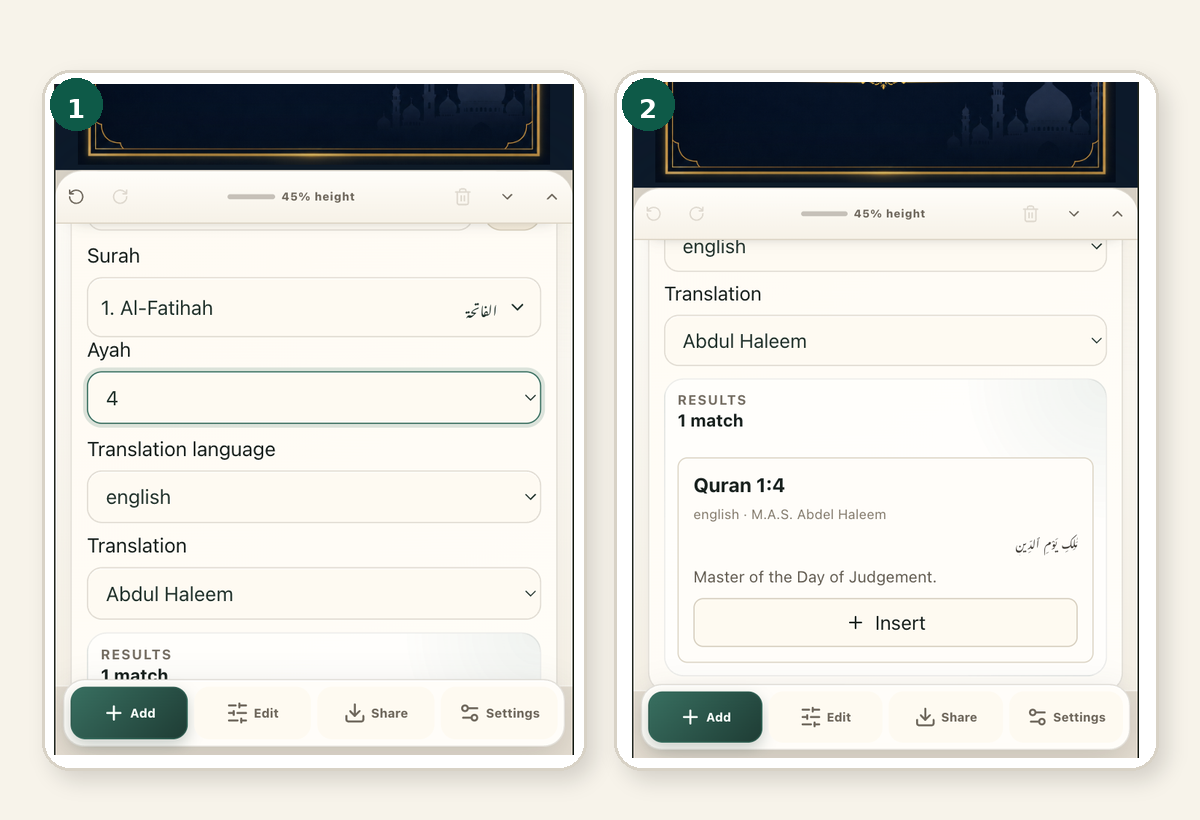
In this example, the result contains Quran 1:4 and the translation:
Master of the Day of Judgement.
Step 4: Insert and arrange the content
Tap Insert.
The Arabic, translation, and Quran reference are placed into the design as a coordinated composition.
Open Layers to see the structure. The captured example contains:
- Quran Arabic;
- Quran translation;
- Quran reference;
- Quran Gold Frame;
- Canvas background.
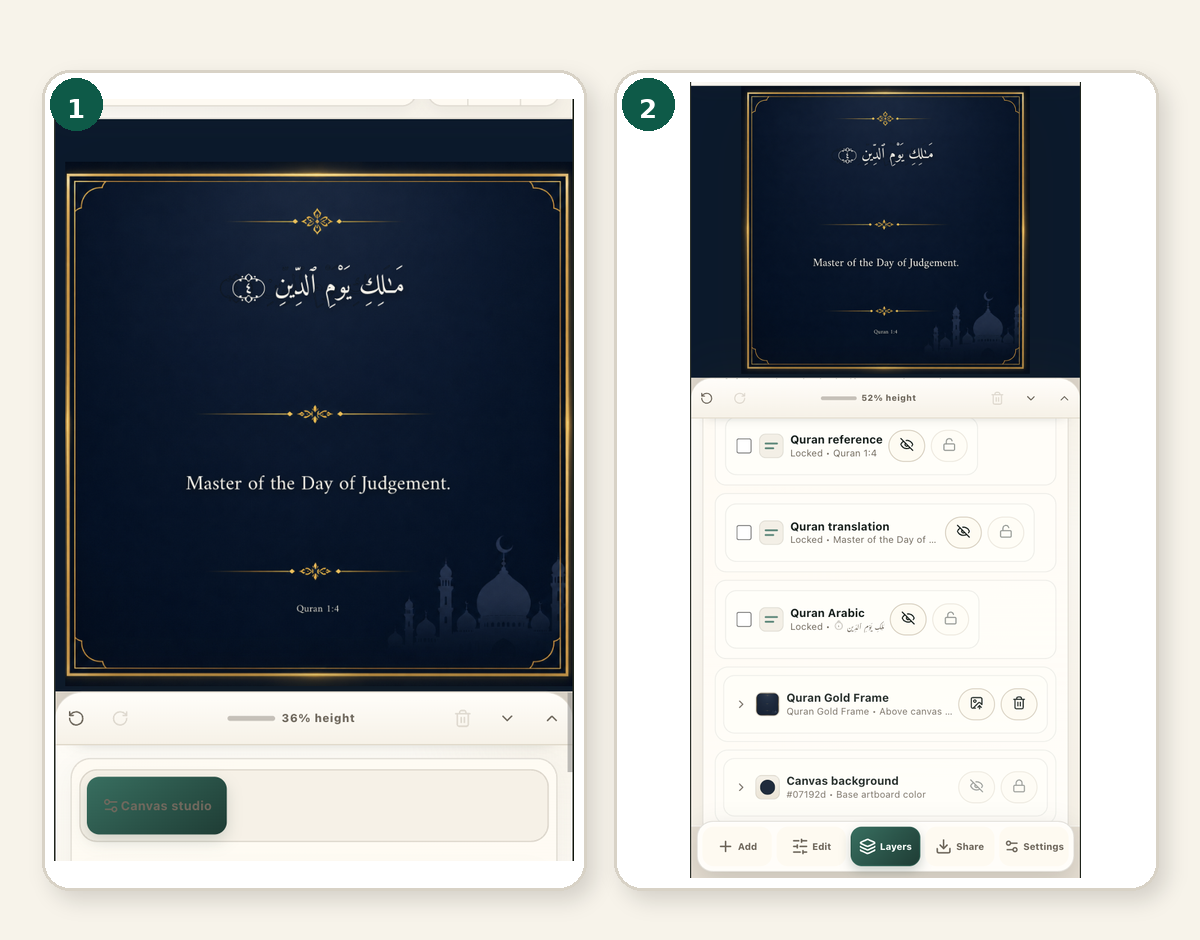
The source-backed text is protected against accidental rewriting, while its layout and visual presentation can still be adjusted through the appropriate controls.
Step 5: Keep the design clear
A good Quran poster does not need many effects. Before exporting, check that:
- the Arabic remains the main visual focus;
- the translation is readable on a phone;
- the reference is visible but not distracting;
- no text overlaps the frame or background artwork;
- the complete design still reads clearly at a small size.
The example uses the default Quran composition without adding heavy shadows, relief, gradients, or extra decorative text.
Step 6: Export the poster
Tap Share.
Choose:
- PNG for sharper text, borders, and ornamental detail;
- JPG when a smaller file is more important.
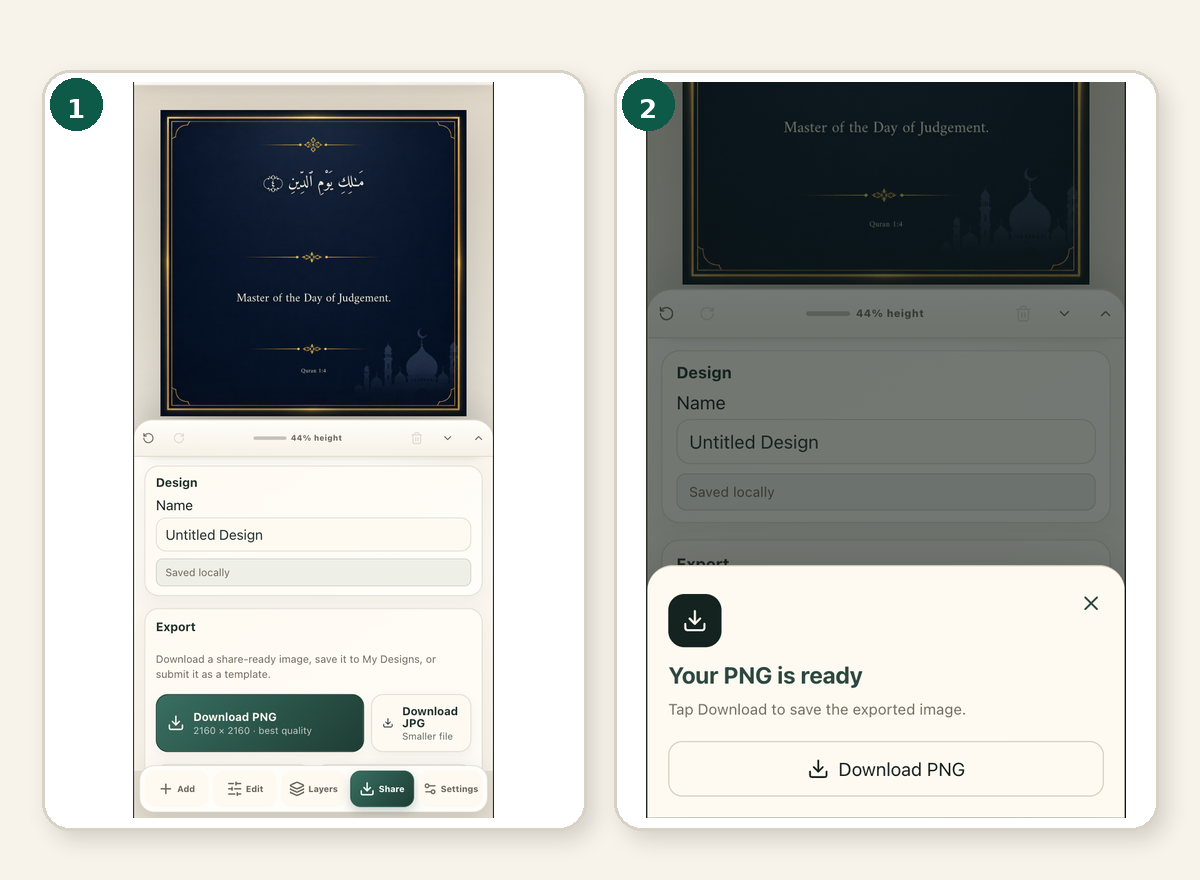
Use the dimensions and quality information displayed in your own Share panel rather than assuming every project will export at the same fixed size.
Android and desktop browsers
After the image is prepared, the Your PNG is ready panel appears. Tap the final Download PNG action to save it.
iPhone and iPad
On supported Apple devices, tap Download PNG to open the native iOS sharing interface. Choose Save Image to place the finished poster directly into Photos.
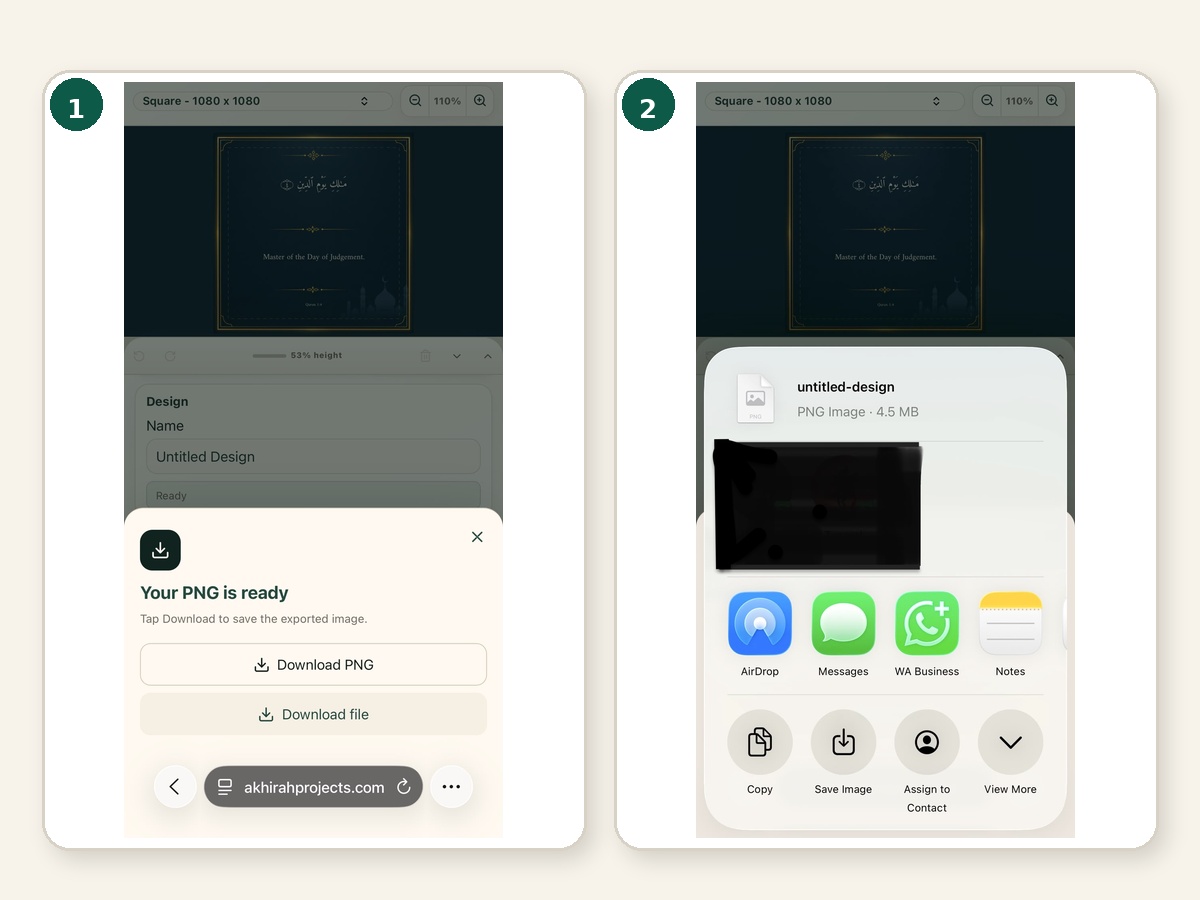
The separate Download file option remains available when you want the PNG saved as a normal file instead.
Check the finished result
Your exported poster should contain:
- the Arabic Quran text;
- the selected translation;
- a readable Quran reference;
- the intended background and ornamentation;
- no editor controls, guides, outlines, or layer handles.
Common questions and problems
Why did the background change when I selected Quran?
Automatic Quran backgrounds can apply the Quran visual system as soon as Quran is selected. You can change the background later or disable this behaviour in Settings.
I selected Quran, but I cannot see the surah and ayah controls
Scroll inside the lower Add sheet. The Quran controls appear below the initial creation choices.
Why is the translation missing from the result card?
Confirm that both Translation language and a specific Translation are selected. Wait for the result card to refresh before inserting it.
Why can’t I rewrite the inserted Quran Arabic?
The source-backed Quran text is protected against accidental editing. Use the layout, typography, and style controls to change its presentation.
Why is Layers missing on mobile?
Open Settings → Advanced features and enable Layers. It will then appear in the mobile bottom navigation.
Do I need an account to save my design?
No. Akhirah Designer saves projects locally in My Designs within the current browser. You can also export the project file for backup or transfer.
Why does iPhone show Save Image while Android downloads a file?
Akhirah Designer uses a platform-aware export flow. Supported Apple devices can open the native share interface and save directly to Photos, while Android and most desktop browsers use direct downloading.
What should I do if the export does not match the canvas?
Wait for all fonts, backgrounds, and artwork to finish loading, then retry the export. If the problem remains, use Report a bug and include your device, browser, steps, expected result, and what appeared instead.